Before you start
- What goes in
- A structure, board and known dimensions with units and an inside, outside or manufacturing reference.
- What comes out
- Calculated dimension sets, a flat-blank preview, folded preview and part/board-area information.
A practical example
NEST: check a ceramic mug inside a fixed shipper
A padded mug assembly occupies 106 × 86 × 96 mm and must fit an outer envelope no larger than 120 × 100 × 110 mm. Start from the external constraint, then inspect the usable space calculated for the chosen structure and board.
Try the example files
NEST SVG practice artworkCreative practice input for this guide.Worked-example worksheet (JSON)Exercise settings and verification checklist for this guide.Before-and-after concept illustration (SVG)Illustrated concept comparison, not an application export.Download this example’s transcriptChaptered English narration for this specific worked example.A separate exercise for this guide
NEST: check a ceramic mug inside a fixed shipper
A padded mug assembly occupies 106 × 86 × 96 mm and must fit an outer envelope no larger than 120 × 100 × 110 mm. Start from the external constraint, then inspect the usable space calculated for the chosen structure and board.

Prepare these inputs
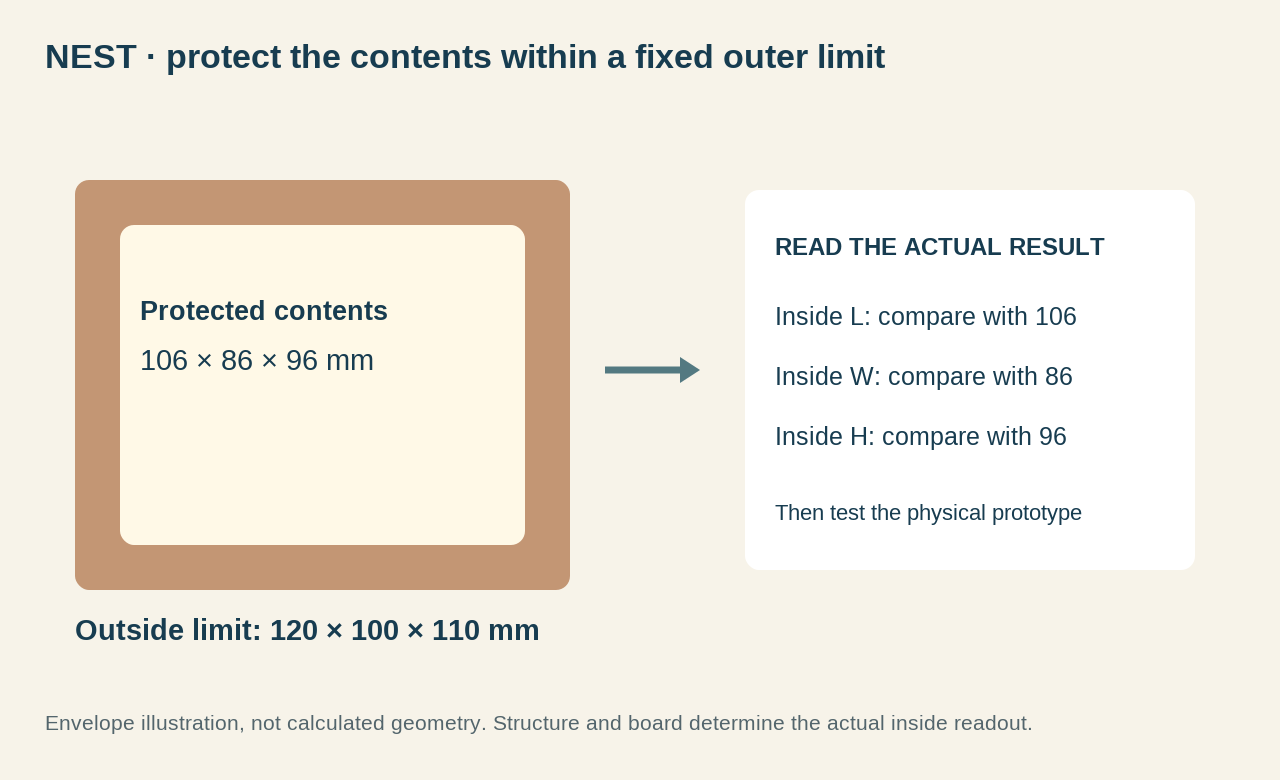
- Practice protected contents: 106 × 86 × 96 mm.
- Maximum external envelope: 120 × 100 × 110 mm.
- The actual style and corrugated board intended for a real shipping prototype.
Settings to try and what changes
My numbers are
Outside
The entered values describe the constraint you know. Choosing Inside with the same values would describe a different, larger physical target.
Structure / Board
Use the intended physical construction and stock
The conversion depends on the selected model and caliper. Do not subtract an arbitrary constant to predict the inside result.
Units
mm
A value such as 120 means a different object in cm or inches. Verify a known dimension in the readout.
Inside / Mfg / Flat blank
Record all displayed results
Usable space answers fit; score-to-score helps manufacturing; the much larger blank is relevant to sheets and cutting.
Follow this specific job
Enter the known envelope
Select the intended shipper style and board, choose Outside and mm, and enter 120 × 100 × 110 mm.
Compare the calculated cavity
Read the resulting Inside dimensions and compare each axis with 106 × 86 × 96 mm. Record the differences rather than assuming the mug fits because the outer numbers are larger.
Test a changed board
Compare another suitable board or measured thickness in the editor. Keep the external constraint fixed and observe the changed usable space.
Validate physically
Continue to the editor for detailed structure and a prototype. Test the protected contents, closure and handling; a dimensional fit calculation does not establish transit protection.
Before: identify the problem
- The outer envelope is mistaken for usable contents space.
- A mug is measured without its protective material.
After: the result to aim for
- The protected assembly is compared with calculated inside values.
- The external limit remains explicit in the selected trial.
Open the annotated concept illustration
Inspect your result
- All three protected-content axes fit the actual readout.
- The structure and board match the intended prototype.
- A physical fit and protection test remains necessary.
Files for this example
NEST SVG practice artworkOriginal square vector input, 100 × 100 mm. Fictional branding; does not contain an approved dieline.Worked-example worksheet (JSON)Readable brief, settings, steps and expected checks. This is a worksheet, not an importable .foldline project.Before-and-after concept illustration (SVG)Explanatory illustration of the problem and intended result; not an application screenshot or a production export.These are fictional training jobs. Artwork and concept diagrams are learning inputs; expected results below are instructions to reproduce and inspect in the app, not claims of a verified manufacturing output.
Step-by-step walkthrough
Choose Structure
Pick a displayed structure or use All box styles. The same three nominal dimensions can produce very different blanks for different closures.
Choose Board and Units
Select the actual board option and read its caliper and note. Set mm, cm or in before entering your measurements.
Set My numbers are
Choose the dimension reference matching your source: Inside for product space, Outside for the assembled envelope or Manufacturer’s for score-to-score dimensions.
Enter dimensions and read all results
Fill the fields available for the selected style. Compare Inside, Manufacturer’s and Outside, then inspect the blank size and part information.
Continue with the verified setup
Open the result in the editor to add artwork, adjust detailed structural parameters and prepare export files. Recheck the complete specification after making further changes.
Options at a glance
| Control or choice | What it changes | How to use it well |
|---|---|---|
| Structure / All box styles | The construction used for the calculation. | Match the physical style before comparing size results. |
| Board | Material and caliper used in structural compensation. | Use the supplier’s actual stock or verify a custom caliper in the editor. |
| My numbers are | The reference of the measurements you enter. | Choose the source reference, not the dimension set you wish to see. |
| Units | Millimetres, centimetres or inches. | Compare the readout with a known measurement to catch unit mistakes. |
| Dimensions and part readouts | The input axes and calculated sizes of the selected construction. | Inspect all parts; a lid, base, insert or wrap can have separate requirements. |
Detailed control reference
Find the control, understand its effect, and choose it for the job you are making. Available controls depend on the selected structure, object, workspace and output.
Calculator/generator → Structure
Structure, quick picks and All box styles
Selects the construction used by the sizing engine. Quick picks are shortcuts into the same available style choices.
- When it helps most
- Choose a physical construction matching the contents, opening and board family. Read the labels of the dimension fields for that style.
- Impact and trade-offs
- Switching a style may change supported boards, dimension fields, valid ranges and part count. Previously edited dimensions can remain, so inspect the results rather than assuming a style switch restores every default.
Calculator/generator → Board
Board and displayed caliper
Chooses a compatible stock preset and uses its stated caliper in the dimension/blank calculations.
- When it helps most
- Use for an early comparison of inside space, external footprint and material needs before continuing in the editor.
- Impact and trade-offs
- The standalone tool uses the preset thickness. Use the full editor for measured caliper/converter-specific production settings. Do not substitute grams per square metre for millimetres of thickness.
Calculator/generator → dimension mode
My numbers are: Inside, Manufacturer’s, Outside
Selects which reference the entered numbers represent; the report calculates the other two sets.
- When it helps most
- Inside suits a product-space brief; Manufacturer’s suits score-to-score specifications; Outside suits a finished envelope constraint.
- Impact and trade-offs
- Changing the mode changes the interpretation of the entered numbers. Compare the “You entered” indicator and the deltas versus inside. Do not copy one numerical set into another mode and expect the same physical package.
Calculator/generator → Units and Dimensions
Units, dimension fields and range messages
Units controls displayed measurements. The style exposes the applicable axes and their limits; some constructions have two named dimensions instead of a conventional three-axis box.
- When it helps most
- Enter values from the real measurement source and read the field-specific labels. Use the stated range to understand supported sizes.
- Impact and trade-offs
- If the tool adjusts a value to a supported range, read the warning and the resolved output rather than assuming the original request was accepted unchanged. Width may follow length for a structure without an independent W field.
Calculator/generator results
Dimension sets, Flat blank, Folded preview and metrics
Shows the calculated Inside, Manufacturer’s and Outside sets, the unfolded geometry, folded view, blank/material measures and relevant technical lengths.
- When it helps most
- Use the flat view to judge the total sheet footprint and the folded view to understand which panels form the package. Fold/play helps connect those two views.
- Impact and trade-offs
- Blank area/size includes closure and assembly geometry beyond the assembled product envelope. A visual fold is not a physical fit or strength test. Multi-part structures require reviewing all listed parts.
Calculator/generator → editor/download actions
Continue in the editor and download
Passes the selected structure, solved size and board into the full editor, where artwork, detailed production settings and exports are available.
- When it helps most
- Continue when you need an editable project, artwork placement, a supplier-specific caliper, a sheet plan or a particular technical format.
- Impact and trade-offs
- Inspect the transferred settings and resolved dimensions in the editor. Sizing/preview access and production download access are distinct; use the live entitlement explanation for the selected output.
What the calculation does and does not establish
The results describe the selected geometry and material model. Product fit still needs clearance for insertion, variation and any protective inserts. Physical strength, shipping performance and manufacturing tolerances require the appropriate real-world checks.
Blank area is useful for estimating material, but a purchasing plan also depends on sheet nesting, press margins, overs and process waste. Continue to Sheet in the editor for a layout-based estimate.
Check your work
- The construction and board match the job.
- The input reference and units are correct.
- Inside space accommodates the product and inserts.
- All parts and the flat blank have been reviewed.
Troubleshooting
The result differs from a supplier quote
Compare structure, caliper, dimension reference, clearances and supplier allowances. The nominal finished size alone does not define the same blank.
Only two dimension fields are shown
Some structures expose a different set of dimensions. Read the labels for that style rather than forcing a three-axis box assumption.