Before you start
- What goes in
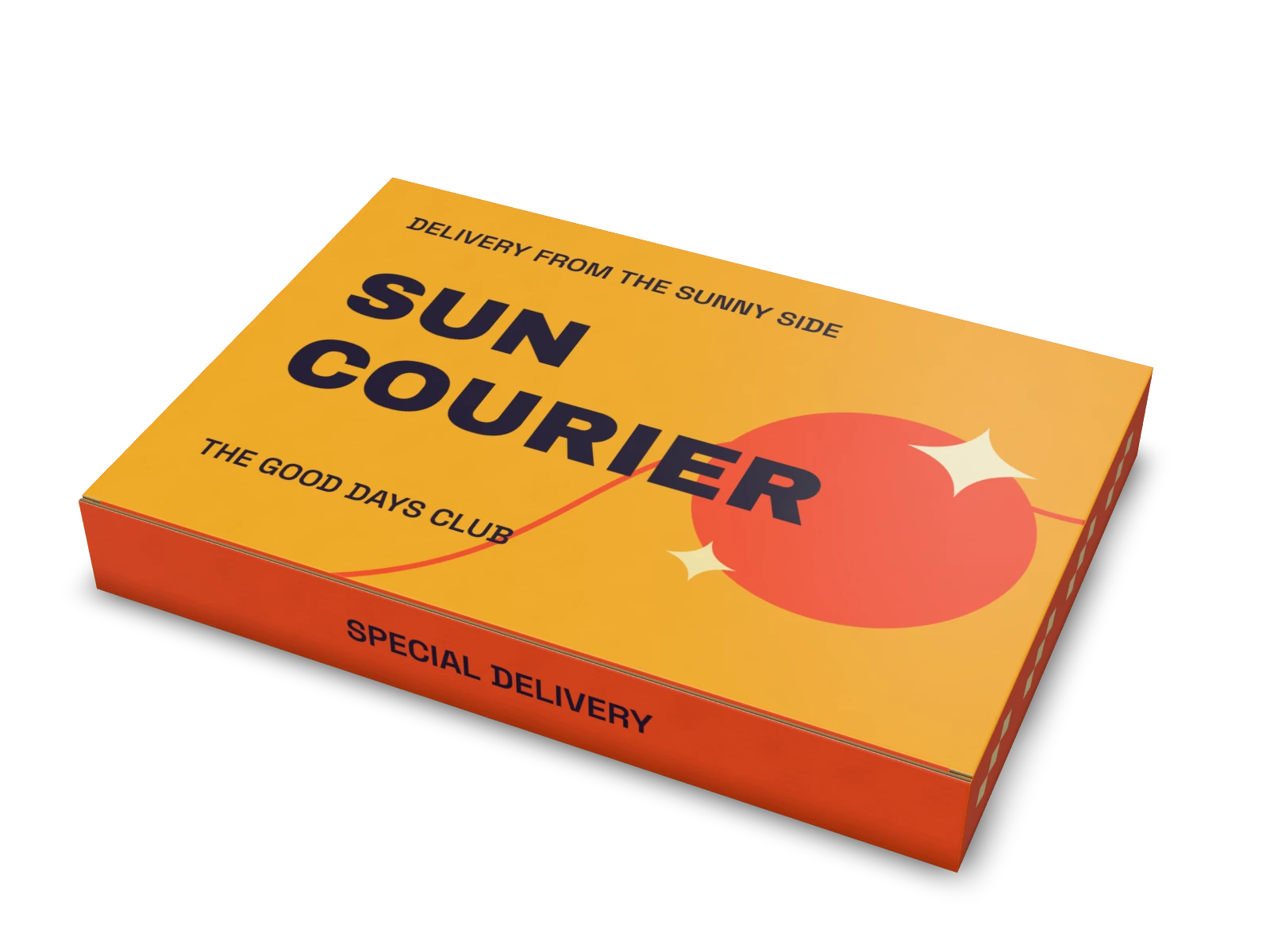
- A PNG or WebP cutout with a visible package and a transparent background, or the built-in Sun Courier mailer sample.
- What comes out
- A flattened PNG with the product placed on your chosen studio backdrop.
A practical example
Frame the Sun Courier mailer for a portrait product card
Start with the built-in Sun Courier mailer. Choose Eucalyptus and Portrait (4:5), set Product scale to 100% and Vertical position to 50%, then download a 1200 × 1500 px PNG.
Step-by-step walkthrough
Prepare the product cutout
Remove the original backdrop in your photo editor and export with an alpha channel. Inspect the corners, transparent openings and outer edge. Crop away excess transparent padding so the product is easy to frame.
Open your image
Use Upload an image to select a transparent PNG or WebP up to 20 MB and 32 megapixels. The built-in sample is ready to use when the tool opens. Your source image is processed in the browser.
Set the backdrop and canvas
Try Eucalyptus with the orange Sun Courier mailer. Select the output format before framing so you can judge the real margins.
Frame the package
Use Product scale to adjust how much of the canvas the image occupies. Use Vertical position to move it up or down. Keep room for an existing shadow and check how the whole silhouette reads against the backdrop.
Download and inspect
Select Download PNG. Open the file at full size and check that the package edge is clean, small print stays legible and the delivered canvas matches the intended dimensions.
Options at a glance
| Control or choice | What it changes | How to use it well |
|---|---|---|
| Studio backdrop | Six preset colour gradients with a brighter area behind the product. | Choose a tone that makes the product edge easy to distinguish. |
| Output format | Landscape 1600 × 1200, square 1200 × 1200, portrait 1200 × 1500 or wide 1600 × 900 pixels. | Choose the format your destination expects before setting scale and position. |
| Product scale and vertical position | Fit the cutout proportionally and move it within the available vertical space. | If the subject still looks small at 100%, trim transparent padding in the source image. |
Keep an editable project for future changes
Use the composed PNG for a product card, presentation or online listing. Save the original cutout so you can reuse it in a different format later.
For new artwork, a different camera angle or an open package, use the editable Sun Courier project in Studio. Scenes can render a new transparent product image or generate a custom AI background. Studio shows the credit cost before generation.
Check your work
- The source retains transparent pixels around the product.
- The package edge and shadow look clean against the selected colour.
- The downloaded PNG has the intended aspect ratio and pixel dimensions.
Troubleshooting
The tool rejects my image
Re-export a supported PNG or WebP with the alpha channel preserved. A white background or a checkerboard baked into the image is opaque.
I see a fringe around the cutout
Refine the mask against a contrasting colour in the photo editor, then export and upload the cutout again.
I need to change the label or package shape
Open the editable Studio project, make the changes there and render a fresh cutout.