Before you start
- What goes in
- A named design and a signed-in account for account storage and share-link features.
- What comes out
- A recoverable editable project and, when requested, a read-only link or review package tied to a specific revision.
A practical example
STUDIO RISO: approve revision 02 without losing revision 01
A stationery client requests a warmer front colour after reviewing revision 01. Keep the original review intact and create a clearly named second revision instead of expecting an old share link to update.
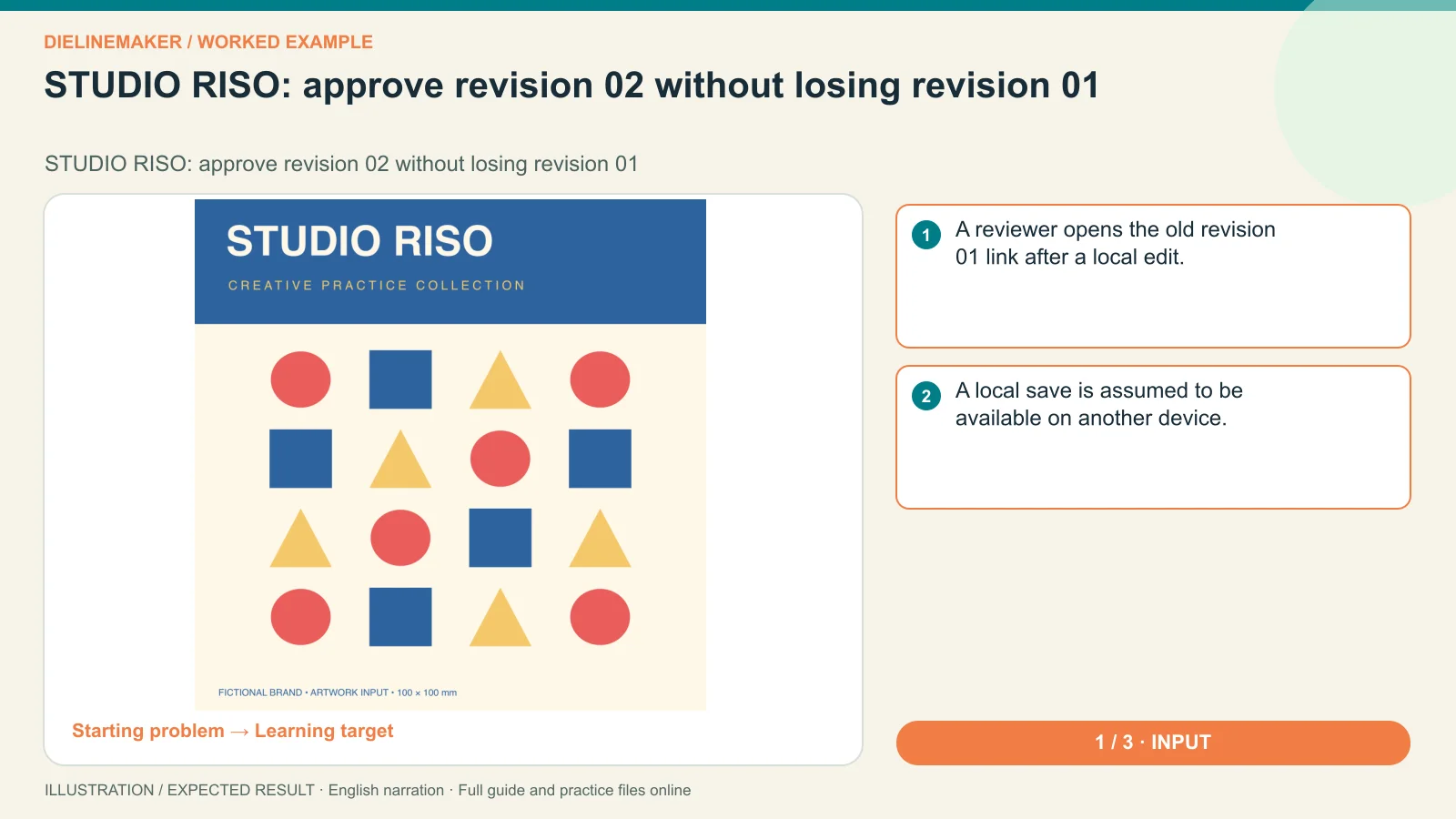
Try the example files
STUDIO RISO SVG practice artworkCreative practice input for this guide.Worked-example worksheet (JSON)Exercise settings and verification checklist for this guide.Before-and-after concept illustration (SVG)Illustrated concept comparison, not an application export.Download this example’s transcriptChaptered English narration for this specific worked example.A separate exercise for this guide
STUDIO RISO: approve revision 02 without losing revision 01
A stationery client requests a warmer front colour after reviewing revision 01. Keep the original review intact and create a clearly named second revision instead of expecting an old share link to update.

Prepare these inputs
- A project named STUDIO RISO — review 01.
- One specific requested change: change only the front accent colour.
- A project-file backup and a reviewer who receives the correct revision link.
Settings to try and what changes
Saving status
Confirm Saved to your account before moving devices
Local/offline storage and account sync are distinct. Download a .foldline backup for an independent recoverable copy.
Share name / Expiry / Password
Name the link with the revision and intended review window
A link captures a revision. Password and expiry control access to that captured revision, not a live editing session.
Approved revision / Duplicate
Duplicate an approved revision before further editing
An approved revision is locked. A new project revision preserves the approval history and makes the next change explicit.
Enable / Disable / Embed
Manage access to the correct link
Disabling or expiry affects the linked viewer and its embed. It does not rename an old reviewed revision into a new one.
Follow this specific job
Preserve review 01
Record the existing link name and save a project backup. If it is approved, duplicate it before making changes.
Create review 02
Apply only the agreed front colour change, rename the new revision and confirm the save status. Inspect the folded front to verify the intended edit.
Publish the new review link
Create a new named link with suitable password/expiry settings. Open it yourself and verify the new colour and revision identity.
Match the handoff
Keep each approval with its matching project and outputs. Send revision 02 files only after that is the revision intended for production.
Before: identify the problem
- A reviewer opens the old revision 01 link after a local edit.
- A local save is assumed to be available on another device.
After: the result to aim for
- Revision 01 and 02 have distinct recoverable review records.
- The new link and production files identify the same revision.
Open the annotated concept illustration
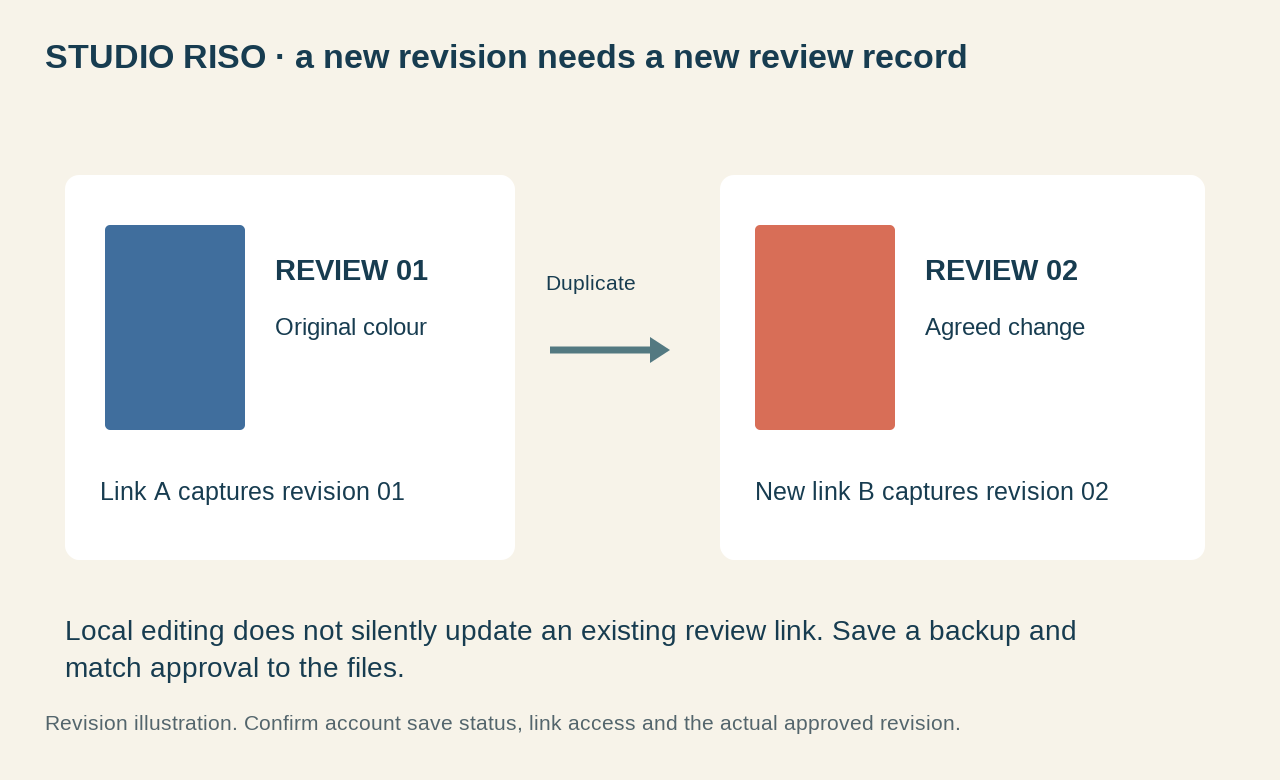
Inspect your result
- The intended account-save state is confirmed.
- The link displays the correct captured revision.
- The project backup can be retained independently.
Files for this example
STUDIO RISO SVG practice artworkOriginal square vector input, 100 × 100 mm. Fictional branding; does not contain an approved dieline.Worked-example worksheet (JSON)Readable brief, settings, steps and expected checks. This is a worksheet, not an importable .foldline project.Before-and-after concept illustration (SVG)Explanatory illustration of the problem and intended result; not an application screenshot or a production export.These are fictional training jobs. Artwork and concept diagrams are learning inputs; expected results below are instructions to reproduce and inspect in the app, not claims of a verified manufacturing output.
Step-by-step walkthrough
Name and save the work
Name the project in the top bar and inspect the saving status in Projects. “Saved to your account”, “Saving”, “Offline” and “Changed on another device” mean different things; wait for the expected status before switching devices.
Organise the library
Use All, Recent, Exports or your folders to find work. Search and switch between grid and list views. Use the project or folder menu for the available organise, duplicate or trash actions.
Keep a portable backup
Download the project file, which includes the editable project and original artwork. Use the project-file opener in Projects to reopen a .foldline file.
Create a review link
Open Share link with artwork, enter a recognisable Name, set an optional Password and choose Expires after. Create the link and copy the resulting URL.
Review comments and approval
The recipient can view the 3D package without editing it. Review any comments and the revision being approved. If the design changes, create a new link; an existing link represents the revision captured when it was created.
Manage or embed the link
Use Enable, Disable or Delete for link access. Expand Embed on a website to copy the iframe or script snippet. Test the embedded viewer and any password/expiry behaviour on the destination.
Options at a glance
| Control or choice | What it changes | How to use it well |
|---|---|---|
| Saving status | Whether the current work is local, syncing, saved to the account or in conflict. | Do not treat a local offline save as confirmation that another device has the latest version. |
| Folders / Search / Grid / List | Ways to organise and find projects. | Use names containing the product and revision; thumbnails alone can look identical. |
| Project download | A portable editable backup with original artwork. | Keep it with important approvals or production handoffs. |
| Password / Expires after | Access controls for a shared revision. | Choose an expiry that covers the review period and communicate access details to the intended reviewer. |
| White label | Removes the DielineMaker footer from the shared page on the eligible Business plan. | Check current plan availability in the share dialog. |
| Embed code / Script snippet | Two ways to place the shared viewer on another website. | Both rely on the underlying link remaining active and accessible. |
Detailed control reference
Find the control, understand its effect, and choose it for the job you are making. Available controls depend on the selected structure, object, workspace and output.
Top bar and Projects
Project name and save state
The name identifies work; the save status distinguishes saving, account-saved, offline/local or a change on another device.
- When it helps most
- Use product plus revision names and wait for account-save confirmation before moving to another computer.
- Impact and trade-offs
- Browser-local storage and account storage have different failure modes. Clearing site data can remove local content. A sync conflict is a reason to inspect versions and preserve a backup, not immediately overwrite one.
Projects library
Folders, All, Recent, Exports, grid/list and search
Changes organisation and how stored work is found. Folder/project menus provide the available move, duplicate, rename or trash actions.
- When it helps most
- Use a folder by client/range and names that distinguish approved revisions from experiments. Search when thumbnails are visually similar.
- Impact and trade-offs
- A view/filter change does not duplicate the underlying project. Moving to trash and duplicating have different consequences; read the action label before using a bulk or menu operation.
Download → Project → Project file; My projects → open project file
Project download and reopening .foldline
Creates a portable editable package with project data and original artwork, then lets the editor reopen it later.
- When it helps most
- Keep one with important approval/production revisions or before a structural experiment. It is useful when browser storage or account sync is unavailable.
- Impact and trade-offs
- A project file is not the same as a PDF export. Confirm the backup reopens with its artwork before relying on it. Imported fonts/media/feature compatibility may still need inspection when moving between versions or devices.
Share link with artwork dialog
Share Name, Password and Expires after
Creates a viewer link for a captured project revision. Name identifies it; Password optionally restricts access; expiry limits its lifetime.
- When it helps most
- Use for a client review with a clear revision label and an expiry covering the review period.
- Impact and trade-offs
- A link captures the revision at creation. Later editor changes do not update that reviewed state. Test access in the intended review context and share the new link when the revision changes.
Share/review management
Approval, comments, Enable/Disable and Delete
Comments and approval relate to the captured revision. Enable/Disable controls link access, and Delete removes the link. An approved revision is locked; duplicate to continue changing it.
- When it helps most
- Keep the approved revision tied to the actual production files and preserve review history when revising.
- Impact and trade-offs
- Approving an earlier link does not approve edits made afterward. Disabling a link can interrupt an embedded viewer using it. Make the revision relationship clear to everyone receiving files.
Share dialog → White label / Embed on a website
White label and website embedding
White label removes the branded share-page footer when eligible. Iframe or script snippets place the underlying shared viewer into a website.
- When it helps most
- Use the provided snippet for an interactive product review on a client or product page, with the intended access policy.
- Impact and trade-offs
- The embed depends on that share link staying enabled, unexpired and accessible. White label does not change who can edit the source project or automatically remove all branding from unrelated downloaded outputs.
Sharing a revision is different from sharing an editing session
A share link displays a fixed revision with artwork. Viewers cannot edit or download the project through that viewer. Later editor changes do not silently replace the reviewed design. Create a new link when requesting approval of a revised design.
An approved revision is locked. To continue changing it, duplicate the project, edit the copy and create a new link. Keep the previous approval so the revision history remains understandable.
Local storage and account sync have distinct failure modes
When offline or when cloud saving is unavailable, the editor can report that work is saved on the device. Restore connectivity and check the account-save status. Browser storage can be removed by clearing site data; a downloaded project file provides an independent copy.
If another device changed the project, review the conflict rather than overwriting a version without inspection. Use a duplicate or backup to preserve work you need to compare.
Check your work
- The latest revision is saved where you expect.
- An important project has a portable backup.
- The review link shows the intended revision.
- Password and expiry settings suit the review.
- The approved revision matches the files sent onward.
Troubleshooting
A project is missing on another device
Confirm the same account, check the first device’s sync status and reconnect if it was offline. Use a project-file backup if necessary.
The share link shows old artwork
Links capture a revision. Create a new link after changes and share that new URL.
A reviewer cannot open the link
Check expiry, disabled state and password. Re-enable the link or create a new one if the old revision should no longer be used.